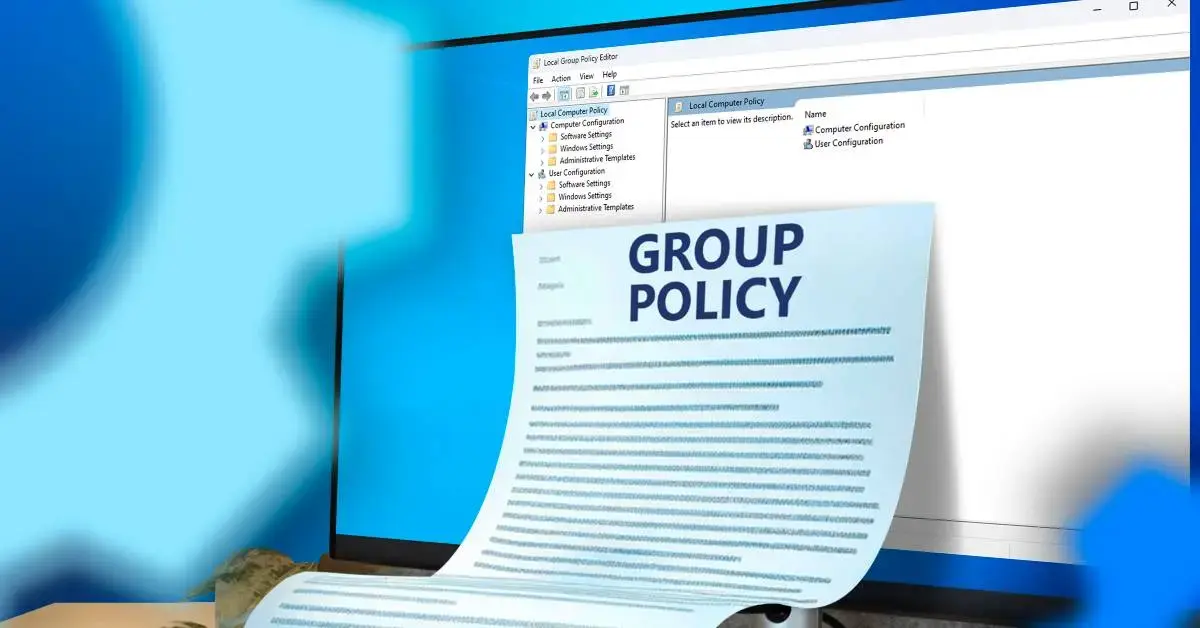
Group Policy Editor is an administrative tool in Windows operating systems that allows you to configure and apply Group Policies on a local computer or in a network environment. Group Policies are a set of rules and settings that determine how the operating system, applications, and users function and interact with the system.
Basic terms:
- Group Policy: A centralized set of rules for managing computer and user settings.
- Local Group Policy: Rules that apply to only one computer, without a central server.
- Group Policy Object (GPO): A collection of settings that can be associated with a domain, organizational unit (OU), or local computer.
- Active Directory (AD): Microsoft's technology for centralized management of users, devices, and resources on a network.
- MMC (Microsoft Management Console): An environment that allows the addition of various administrative tools (snap-ins), including Group Policy Editor.
The purpose of the Group Policy Editor is to enable administrators and advanced users to easily and securely customize Windows behavior, restrict access, enforce security policies, and automate tasks without directly editing the registry or using scripts .
Which editions of Windows include Group Policy Editor?
One of the most important details is that gpedit.mscis not available in all editions of Windows . It is included by default only in more advanced versions, while in Home editions it is necessary to use alternative methods to enable it.
Releases that include Group Policy Editor:
- Windows 11 Pro, Enterprise, Education
- Windows 10 Pro, Enterprise, Education
- Windows 8.1 Pro, Enterprise
- Windows 7 Professional, Ultimate, Enterprise
Editions that do not include Group Policy Editor:
- Windows 11 Home
- Windows 10 Home
- Windows 8.1 Core/Single Language
- Windows 7 Home Premium, Home Basic, Starter
There are unofficial methods for enabling gpedit.msc for Home edition users , but they are not officially supported by Microsoft. More on that in a separate chapter of this guide.
How to open and access Group Policy Editor ( gpedit.msc)
Accessing the Group Policy Editor depends on your version of Windows and your administrator privileges. Only users with administrator privileges can use this tool.
The most common methods for opening gpedit.msc:
- Windows + R key combination:
- Press
Windows + R - Type
gpedit.mscand press Enter
- Start menu / Search:
- Click Start
- Type gpedit or Group Policy
- Select Edit group policy or Edit group policy
- Command line (CMD):
- Open CMD as administrator.
- Type
gpedit.mscand press Enter
- Microsoft Management Console (MMC):
- Press
Windows + R, typemmcand Enter - File > Add/Remove Snap-in > Group Policy Object Editor > Add
- Select the local computer or a specific user profile.
- Control panel:
- Open Control Panel
- Search for Group Policy
- Odaberite Edit group policy pod Administrative Tools
Note: If you get an error that Windows cannot find gpedit.msc , you are probably using the Home edition or you do not have administrator rights.
Group Policy Editor structure and interface: Computer vs. user configuration
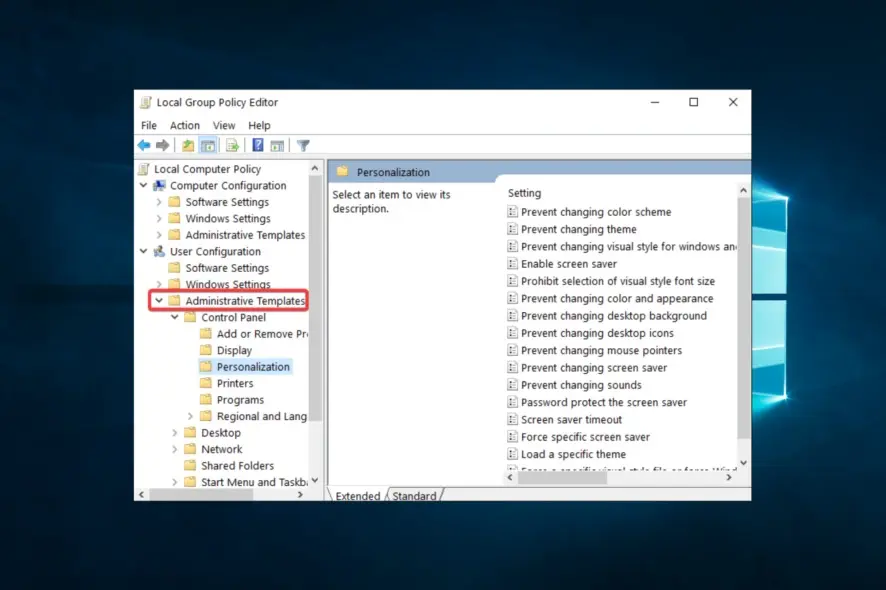
When you open gpedit.msc , you will be greeted by the classic MMC interface divided into two main branches:
1. Computer Configuration
- Rules that apply to the entire computer, regardless of which user is logged in.
- Typical categories:
- Software Settings
- Windows Settings
- Administrative Templates
2. User Configuration
- Rules that apply only to specific user accounts.
- Typical categories:
- Software Settings
- Windows Settings
- Administrative Templates
Navigation:
On the left side there is a tree (Console Tree) with categories and subcategories, while the central part displays the available policies and their description. Each policy can be in one of three states:
- Not Configured

plugins/fob-comment::comment.front.form.title
plugins/fob-comment::comment.front.form.description